

Blender Everything
Blender · AI · Asset creation
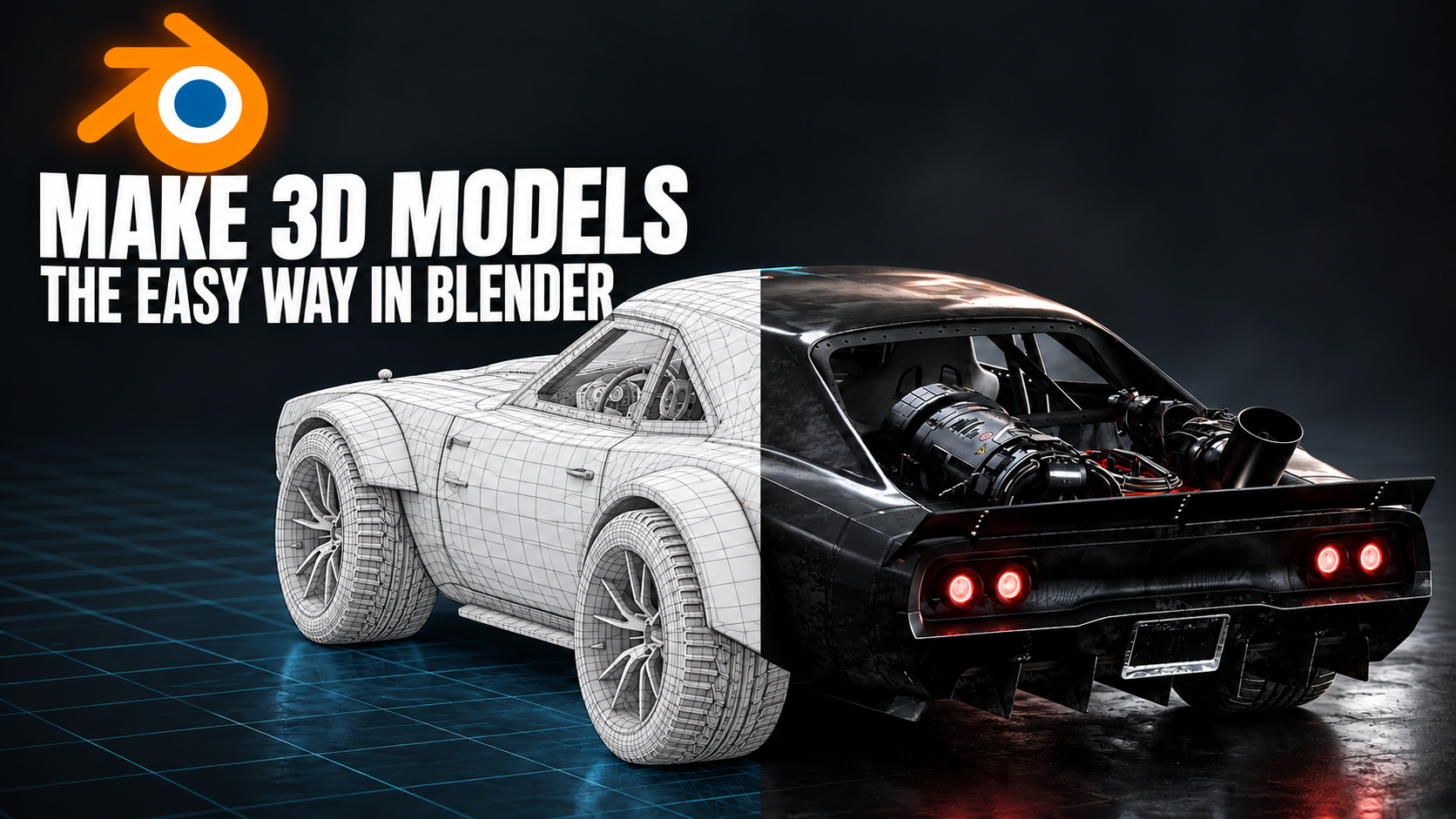
Make 3D Models the Easy Way in Blender
My workflow for turning image references into textured props, building a reusable asset library, and keeping control of the final scene.
By Ismail · Blender Everything
I wanted a workflow where I could give an AI an image reference, have it build the asset directly in Blender, and save a finished model that I could use again. The goal was to create actual props with proper UVs and baked textures, then organize them into a library that makes them easy to find and use.
Getting one model to look good was only part of it. I also needed a process that could produce a whole pack without me repeating the same instructions or manually opening every file. That meant figuring out the materials, documenting the workflow, and finding a practical way to review the results.
Start with the kind of asset the AI can handle
The first thing I would do is test the AI on a few examples of the assets I actually want. A result on one type of object doesn’t tell me how well it will handle everything else, so I want to establish what works before committing to a large batch.
For the props I tested, modeling was usually the easy part. With a good image reference, the frontier models I tried could generally build something usable. The reference gives the AI a clearer target for the shape, proportions, and details than a long description alone.
I would still inspect the model before moving on. If the proportions are wrong or an important part is missing, I want to fix that before spending time on UVs and textures. Getting one representative asset right also gives me an example I can use to guide the rest of the pack.
The challenging part is the texturing
In my tests, materials and textures were where the AI tended to mess up. It could create the shape, but getting the surface to look the way I wanted needed more direction. Metal, wood, rust, dirt, and vegetation all need to work together, and simply asking for an “old” or “weathered” model leaves a lot open to interpretation.
One of my first instructions was to bake the finished material into a PBR texture set. I wanted each model to have one PBR set, rather than depending on a complicated Blender shader setup for its final appearance. That makes the assets easier to move into programs like Unreal Engine and Godot.
The AI can still use procedural materials and masks while building the textures. What matters to me is that the finished asset uses the baked result. I want a model I can reuse without having to reconstruct the original texturing process every time.
Check the UVs before baking
Before any of that, the model needs proper UVs. The AI models I tested were already reasonably good at unwrapping, but I still needed to inspect the layout. A model can be unwrapped without making good use of the available texture space.
One recurring issue was excessive margin or padding between UV islands. The UVs themselves were okay, but the empty space meant less room for the actual surface detail. I found a margin of 0.01 worked well in my setup. I would treat that as a starting point for that setup, though, rather than a value to copy blindly into every asset.
The unwrapping and packing methods also matter. For a single object, I can tell the AI to use a suitable projection or unwrap method. Across a whole pack, different shapes may need different approaches. I wouldn’t expect the same method to give the best result on every model.
This is another reason to inspect a few representative assets early. I want to catch wasted UV space or obvious stretching before those problems become part of the workflow for the entire pack.
Decide which maps and details the asset needs
Once the UVs are ready, I decide what maps will help with the texturing. In my case, I instructed the AI to generate an ambient occlusion map that could help place dirt in corners and contribute to masks for rust. I also wanted cavity information available for more localized surface detail.
I think it helps to explain what each map is supposed to do. Asking for a dirt mask is more useful when I also describe where the dirt should collect and how strong it should be. The map is a starting point for placing the effect; I still need to judge whether the result makes sense on the object.
I also asked the AI to find suitable textures for metal, wood, and other surfaces. For additional detail, I had it generate alpha cards for vegetation such as hanging leaves, lianas, and vines. These were part of getting the finished asset closer to the reference, rather than stopping at the basic shape.
Not every asset needs the same treatment. An industrial object might need chipped paint and rust, while a stone ruin might need dirt, surface variation, and vegetation. I want the texturing instructions to reflect the object instead of applying every available effect to everything.
Use an image to explain the finish you want
When the AI wasn’t getting the texturing style I wanted, I found it easier to show it another image than to keep describing the changes. I could use an image generator to quickly add the details I wanted to a reference, then send that image to the AI and ask it to recreate those details on the model.
That gives me a visual way to direct the work. I can show the amount of rust, where the ivy should hang, or how worn the surface should look. The image becomes a target I can compare against as the actual asset develops.
For me, this is a useful place to spend a little extra time. A clear reference can save several rounds of trying to explain a visual detail through text.
Choose the model based on your own results
Another thing I noticed in my tests was that there was little to no difference between Opus 5.5, Sonnet, Astra, and ChatGPT Sol in the final results for these assets. That doesn’t mean I would expect them to perform identically on every task, but I wasn’t seeing enough difference here to automatically choose the most expensive option.
My approach would be to test a representative asset with the models available to me and use the cheapest one that consistently meets the standard. Once I have a clear reference and a reliable set of instructions, I care more about the finished asset than which model produced it.
Turn the first successful asset into a repeatable workflow
After making the first model and checking that the workflow gave me the details I wanted, I had the AI write an MD file that it or another AI could follow. This covered the major steps: generating the necessary textures and labels, adding dirt, rust, and ivy where needed, and baking the final result into a PBR set.
The MD file should also define what a finished asset looks like. I would include the correct scale, sensible polygon counts, texture resolution, naming, and where the origin should be. These details may seem small when working on one prop, but they make a difference when using hundreds of assets together.
You can also include paths to specific textures in your Windows folders. Right-click the image, select “Copy as path,” and paste it into the MD file. That tells the AI exactly which texture you want it to use.
Going forward, I would also have it copy the textures each asset needs into that asset’s folder and use relative paths where possible. I want to be able to move the library without leaving the models dependent on files scattered across my computer.
Give different asset packs their own instructions
I made separate MD files for different types of models. The industrial pack had its own instructions because it needed a slightly different workflow from the medieval ruins and towers. There was no reason to generate a rust mask for the stone structures in the medieval pack.
One change I might make in the future is to keep one main MD file for the rules every asset should follow, then smaller files for each pack. Shared rules could cover naming, exports, and folder organization, while the pack instructions describe its materials and visual style.
That would let me change a common rule in one place. I would also ask the AI to update the instructions whenever we fix a recurring mistake, so the next batch benefits from what we learned.
Review the assets without opening every Blender file
After inspecting a few models, I was confident in the results the AI would generate. I didn’t want to inspect every model individually in Blender, but I still wanted a way to catch mistakes.
So I told it to make an HTML page with thumbnails of every model it creates. That gives me a gallery I can browse and use to flag anything I’m not happy with, without opening Blender each time.
For future batches, I would have it generate a few consistent views of each asset. One good angle can hide problems on the other side, and consistent lighting would make it easier to compare materials across the pack.
I would also have it reopen the saved asset and render that version for the thumbnail. That way, the preview comes from the file I’ll actually use, rather than a temporary scene that might contain changes that were never saved.
Add technical checks alongside the gallery
The thumbnails help me catch visual mistakes, but they won’t show every technical issue. The next step I would add is an automatic check for missing textures, incorrect scale, and whether the baked materials are actually connected.
I would want those results next to the thumbnails, so I can see which assets need attention. That wouldn’t remove the need for my own judgment, but it would help me spend less time checking the same basic things manually.
Because I want the assets to work outside Blender, I would also test a few in Godot or Unreal before generating a large batch. Having PBR textures is part of that workflow, but I still want to check the scale, material setup, and export settings in the program where I plan to use them.
Make the finished library easy to use
I didn’t want to manually open each model whenever I needed it, so I made an addon called the Asset Library. This is where all the models will live. I can search for and load them, add new ones, delete what I don’t want, and edit them however I like.
I also added a “Copy Path” button. If I inspect a model and find an issue, I can paste its path into the chat, and the AI knows exactly which file I’m talking about. I don’t have to describe the model and hope it finds the right one.
Another improvement I would like to make is keeping the previous version whenever the AI edits an asset. If a change makes something worse, I want a straightforward way to go back. The same idea applies to the instructions: I want to improve the workflow without losing a version that already worked.
Keep control of the final scene
What I like about this workflow is that I still control the scene. I choose the composition, the lighting, and how everything fits together. The AI helps me build individual props, and I get actual models that I can edit, reuse, and render however I want.
Even when AI can’t make the render I want, it can help me make the props I need to create it.
I think the real value is in building a process I can keep improving. A successful asset becomes an example. A correction becomes an instruction. A finished pack becomes something I can use across future projects.
The Asset Library addon is going to be available on Patreon and Gumroad. The links, along with the MD file, will be in the accompanying video description.
Blender Everything · A practical workflow based on my asset creation tests.