

# Twinmotion and Blender Are an Insane Combination
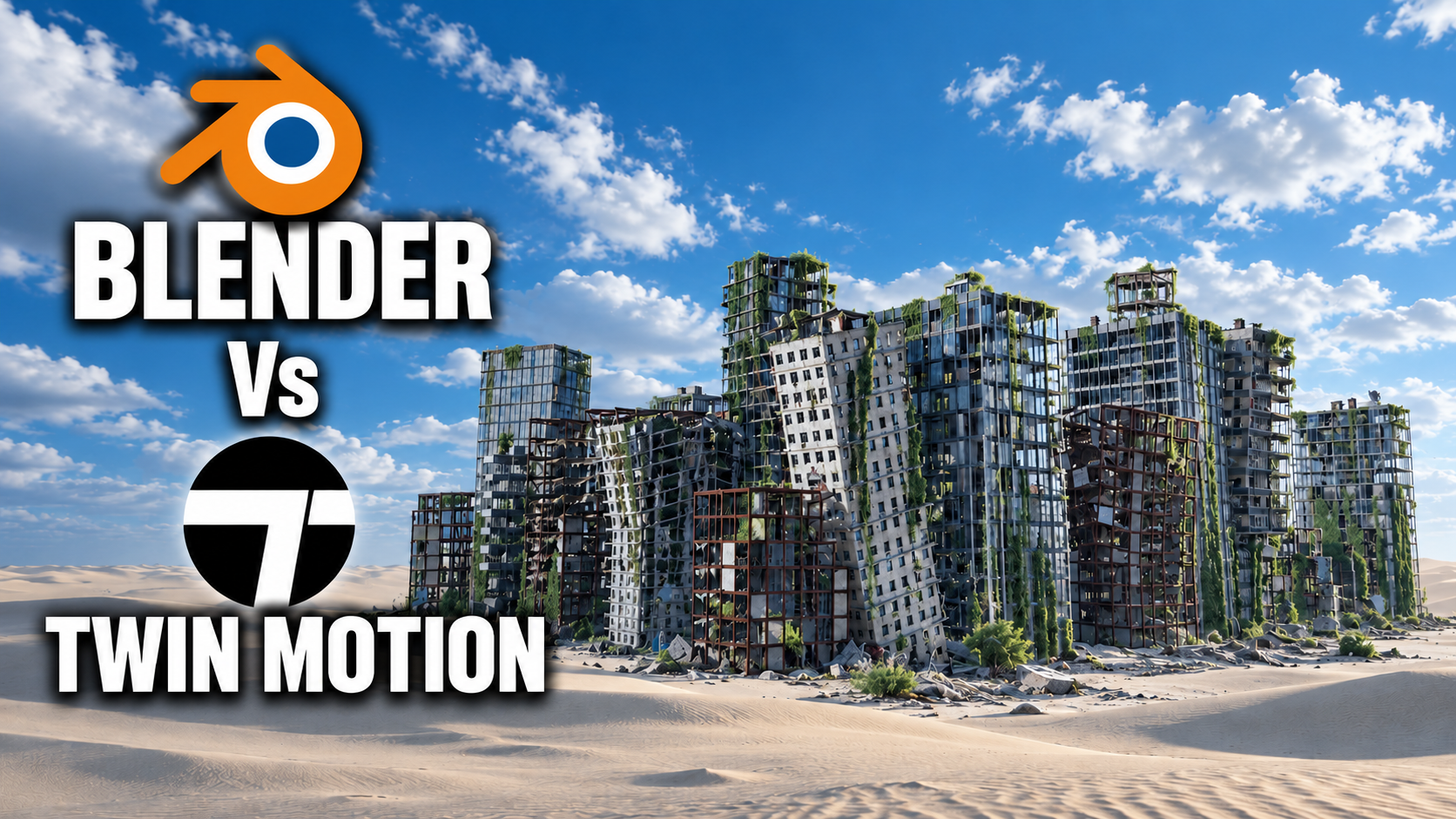
Blender is where I build my scenes. But after creating my Destroyed City Generator, I ran into a different challenge: rendering enough demo footage to show what it could do.
I wanted multiple videos, longer camera moves, and shots that gave people time to explore the environments. Cycles could deliver the quality, but the rendering time made that difficult. In this particular scene, Eevee wasn't giving me the lighting and shadows I wanted either, and navigating a city full of vegetation, glass, and transparency felt sluggish.
That search for another rendering option led me to Twinmotion. After bringing the same city into it, I started to see how useful this combination could be: build in Blender, then use Twinmotion to light, populate, and present the scene.

*Twinmotion Path Tracer example. Image: Epic Games / Twinmotion. This is an official example, not a render of my Destroyed City Generator. [Image source](https://www.twinmotion.com/news/twinmotion-2023-1-is-here).*
## Why Twinmotion caught my attention
Twinmotion is Epic Games' real-time visualization application, powered by Unreal Engine. It puts rendering and presentation tools into an interface focused on creating visuals, with access to technologies such as Lumen, Nanite, and a Path Tracer. Available features depend on the Twinmotion version; it doesn't expose everything in Unreal Engine. [Explore Twinmotion's features](https://www.twinmotion.com/).
What caught my attention was the combination of the results I was seeing and how quickly I could move around my own scene.
In my Eevee test, the city was running at roughly 15 frames per second. In Twinmotion, moving through the imported city felt much smoother. That's an observation from this project, rather than a controlled benchmark, but it matters for the work I'm doing. A responsive viewport makes it easier to explore angles, frame shots, and decide what to show next.
I still need to compare finished renders and export times properly. For now, the experience of working inside the scene is enough to make me want to explore further.
## Getting the scene from Blender into Twinmotion
My workflow starts with an FBX export from Blender, with baked textures prepared for the move between applications.
For my add-on, I added an export button to package the scene for that process. Once the export is ready, I can open Twinmotion, choose Import, and bring in the FBX file.
Materials are the part that needs attention. A Blender shader setup won't necessarily transfer exactly as it appears in Blender, especially when it depends on procedural nodes. Preparing image textures helps, and I check the imported materials before moving on to lighting.
Twinmotion's own material library also makes this easier. If an imported surface needs replacing, I can browse a material category, choose an alternative, and apply it directly to the object.

*Car-paint materials demonstrated in Twinmotion. Image: Epic Games / Twinmotion. [Image source](https://www.twinmotion.com/news/twinmotion-2023-1-is-here).*
## A library that helps scenes come together
One of the first things I liked was having materials and assets close at hand. Instead of stopping to build every supporting element, I can browse the library and add what the scene needs.
In the recording, I tried placing an animated character. After downloading the asset, adding it was a drag-and-drop operation. Its available behaviors could then be adjusted through the properties.
That is useful for demonstration scenes. A character gives the environment a sense of scale and makes it feel inhabited, without requiring me to create and animate a person just for the shot.
The interface also felt approachable coming from Blender. There is a scene hierarchy, a properties area, and a library of assets and materials. The controls are different, but the overall organization was easy to follow.
## Adding vegetation to the destroyed city
An abandoned city needs more than damaged buildings. Grass and weeds help suggest that time has passed and nature is moving back in.
Twinmotion's vegetation tools fit that task well. I can select assets from the grass and flowers library, add them to the painting tool, and paint them into areas that need overgrowth.
If you've used foliage painting in Unreal Engine, the approach will feel familiar. In Twinmotion, I found it straightforward to get started and experiment with placement.

*A selection of Twinmotion tree assets. Image: Epic Games / Twinmotion. [Image source](https://www.twinmotion.com/news/twinmotion-2025-1-is-here).*
## Changing the atmosphere without rebuilding the setup
The environment controls were another highlight. For a destroyed city, atmosphere can change the entire feeling of a shot. Fog can give distant buildings depth, while a different sun angle can draw attention to the damage and silhouettes.
In Twinmotion, I could adjust the fog density and height, change the clouds, and experiment with the sky from the environment controls. I could also switch between an HDRI and a dynamic sky, then adjust the time of day and sun direction.
Having those controls together makes it easier to try different moods while composing a shot. That matters when the goal is to produce several demos from the same environment without having every video look identical.
## Where I'm taking this workflow next
I'm planning a short series exploring Twinmotion with Blender, using my scenes to work through importing, materials, vegetation, lighting, and rendering. I also want to compare the results with Eevee and see where each approach works best.
For the Destroyed City Generator, the immediate appeal is practical: I can keep creating the environments in Blender and explore another way to turn them into presentation footage.
I wish I'd looked into Twinmotion sooner. Now that I've started, there's plenty I want to test.
What would you like to see covered first: getting Blender scenes into Twinmotion, fixing materials, creating cinematic lighting, or comparing the results with Eevee?