If you are choosing a computer for Blender, or thinking about an upgrade, it helps to start with the work you want to create. Someone sculpting characters has different needs from someone building a forest. An animator has different priorities from an artist running a water simulation in Houdini, or generating video with AI. The same hardware upgrade will not help them equally.
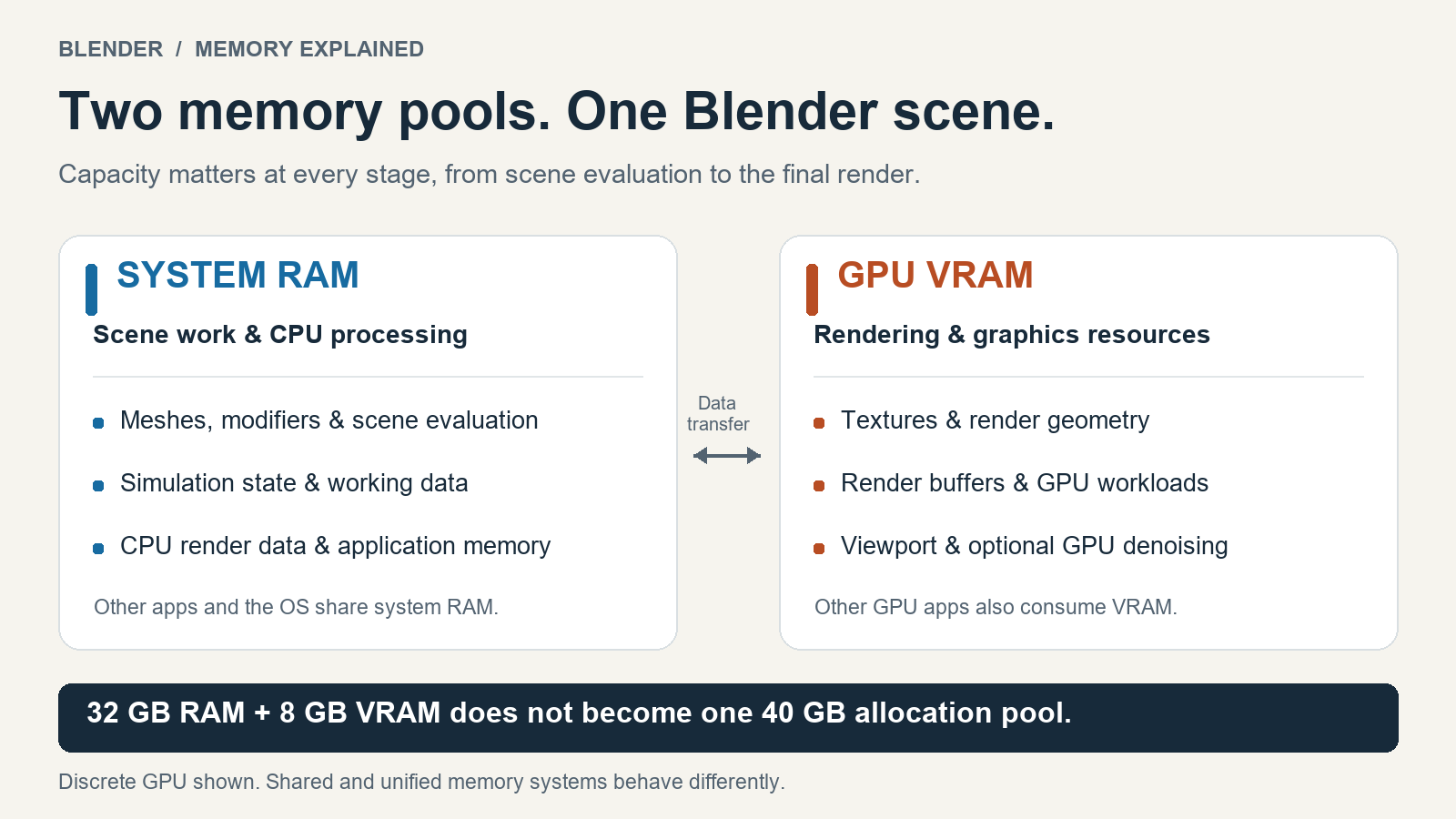
You only need one basic distinction to make sense of the choice. RAM is your computer’s system memory. It gives your applications room to work with a project. Video memory, usually called VRAM, gives your graphics card room for the resources it uses. Both matter, but their importance changes as you move from creating a scene to displaying it, simulating it and rendering it.
Modeling: start with the scale of your assets
If you mainly model individual objects, such as furniture, weapons, vehicles or props, a balanced computer is usually a better starting point than a graphics card chosen for its enormous memory capacity. You need enough system memory for your models and modifiers, and a capable graphics card for a comfortable viewport. Once those needs are covered, processor performance and the way you build the model may affect responsiveness more than adding more memory.
The situation changes when a model becomes a very detailed assembly, or when you keep many heavy assets open together. At that point, more system memory can give you useful room to work. The practical priority is enough RAM for your actual modeling workload, followed by graphics capability that suits your previews and final output.
Source: Blender: Geometry Nodes performance.
Sculpting: give dense models room to grow
For detailed sculpting, system memory usually moves higher up the list. A character can grow from a simple shape into a dense sculpt with clothing, separate parts and a substantial undo history. You want enough memory to keep developing that model without constantly reducing detail or closing other applications.
A graphics card with more video memory can help with demanding display and rendering tasks, but it does not automatically make every sculpting brush faster. In Blender, and in dedicated sculpting applications, processor performance, geometry handling and the particular tool also matter. If your main problem is running out of room while sculpting, investigate RAM before assuming that a more expensive graphics card is the answer.
Sources: Blender: sculpting and undo memory; Maxon: ZBrush requirements.
Large environments and forests: budget for both stages
Large environments make the choice less one-sided. Building a city, a landscape or a forest can put pressure on system memory as you assemble and evaluate the scene. Lighting and rendering that same environment can put pressure on video memory through its geometry, materials and textures. A scene that is comfortable to arrange may become difficult when you switch to a detailed rendered view.
A forest is a useful example because the number of trees does not tell the whole story. Thousands of instances can reuse the same tree geometry. A smaller collection of unique trees, each with heavy geometry and different high-resolution textures, can demand much more memory. Keeping repeated assets as instances and using lighter distant vegetation can change what your computer can handle.
If you spend most of your time building the environment, leave generous room in system memory. If you spend most of your time lighting it and producing local GPU renders, video memory becomes an equally important part of the budget. For a forest artist doing both, aim for balance across the whole process.
Sources: Blender: instances and procedural geometry; Blender: Cycles GPU rendering.
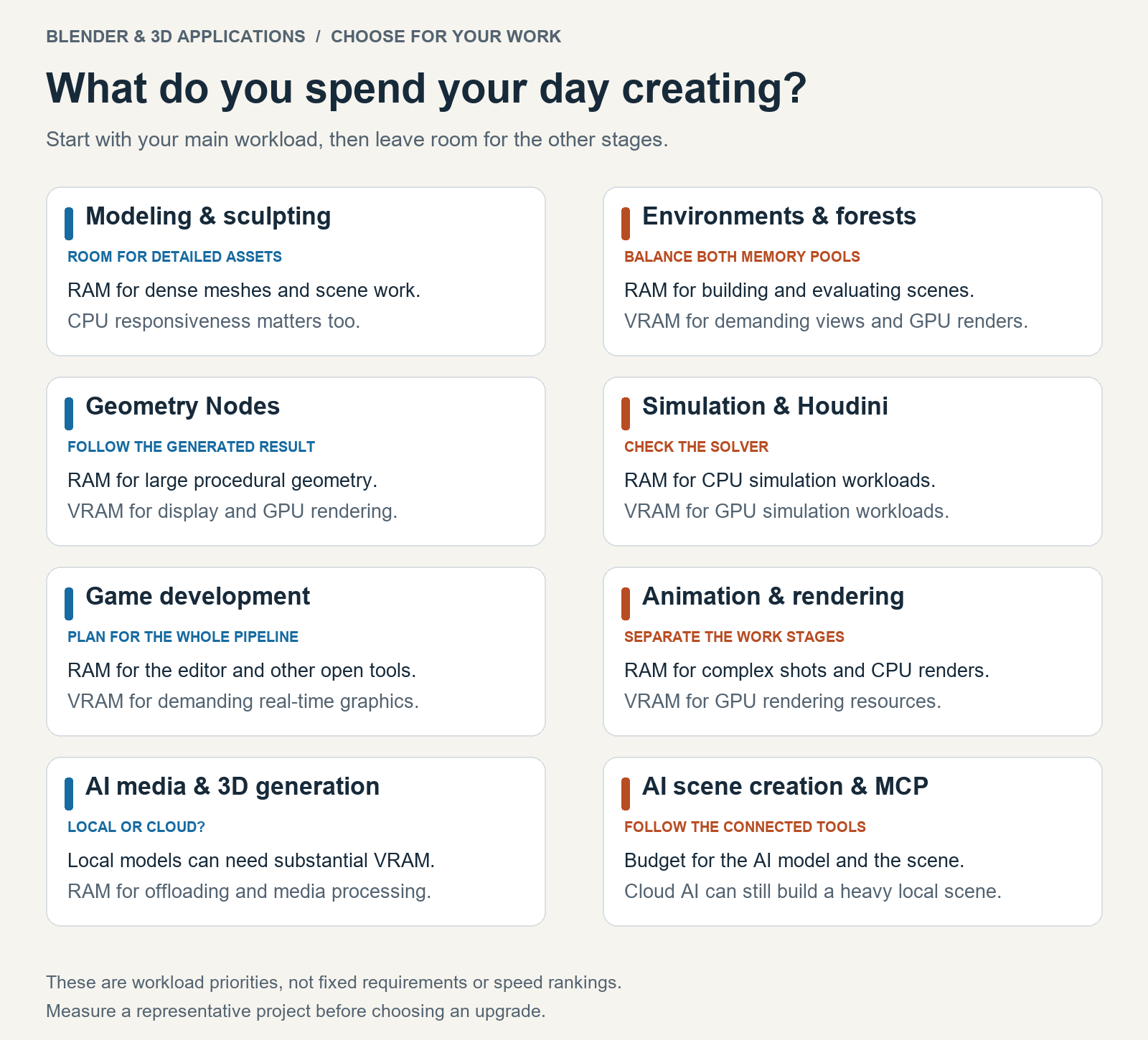
Start with the work you do most often, then leave room for the other stages. This is a qualitative guide, not a benchmark. Open the full-size illustration.
Geometry Nodes: follow what the node tree produces
Geometry Nodes follows a similar pattern. A small node tree can generate a huge amount of geometry, so the size of the node graph tells you very little about the size of the result. System memory matters when that result becomes large. Video memory matters when the generated scene has to be displayed or GPU rendered.
Before upgrading, look at how the scene is generated. Keeping objects as instances can save a great deal of memory. Turning all those copies into separate geometry can raise the demands sharply. For procedural modeling and scattering, RAM is often an important capacity upgrade, but an inefficient setup can consume almost any amount you give it.
Source: Blender: Geometry Nodes performance guidance.
Game development: consider the whole desktop
Game development needs a broader view because you may have Blender, a texture application and a game engine open at the same time. System memory supports that working environment. Video memory supports demanding engine views, detailed materials and the graphics workload of the game you are developing.
An artist making individual game props may get more value from enough RAM and a sensible graphics card. Someone building large, visually demanding levels may need much more from both. Choose hardware for the tools you use together, and remember that the development machine’s capacity is separate from the performance budget of the players’ machines.
Source: Epic Games: Unreal Engine development hardware.
Simulation and Houdini: check which solver does the work
For simulation, the solver changes the answer. Many workflows involving fluids, smoke, destruction and procedural effects rely heavily on system memory. If you work mainly with CPU simulations in Houdini, generous RAM capacity can be much more useful than spending the same budget on additional video memory. Storage matters too, because simulation caches can become large.
GPU simulations are the important exception. When a solver runs its main simulation on the graphics card, the available video memory can limit the size of the effect. Houdini supports GPU acceleration in workflows such as Vellum and Pyro, so it would be misleading to say that Houdini users should always prioritize RAM. Check the solver and the device it actually uses.
For someone exploring effects seriously, 64 GB of system memory can be a useful starting target, with larger projects sometimes needing more. That is practical planning guidance, rather than a promise that every simulation will fit. A GPU-focused effects artist also needs to budget for video memory and the requirements of their Houdini version.
Sources: SideFX: Houdini requirements, memory and GPU simulation; SideFX: OpenCL processing devices.
Animation: separate posing from the final render
Animation has two different needs that are easy to mix together. While you animate, the computer must evaluate rigs, deform characters and update the scene. Enough system memory helps accommodate complex characters and larger shots, but slow playback can also come from processor limits or an expensive rig. More RAM only addresses the capacity part of that problem.
Later, when you render the animation, your priorities depend on the renderer. If the final images are rendered on your graphics card, video memory matters. If you send the final job to a render farm, the local computer’s editing and preview performance may be a better place to focus your money. Judge the complexity of the shots and the work you do locally, rather than the animation’s duration alone.
Sources: Blender: animation evaluation performance; Blender: CPU and GPU render devices.
Rendering: capacity and speed are different purchases
For an artist who mainly lights and GPU renders detailed scenes, video memory deserves serious attention. A fast graphics card can still struggle if it cannot accommodate the working scene. Extra video memory provides room for larger projects, while the GPU’s processing performance affects how quickly it renders. A card with more memory is not automatically faster at a scene that already fits comfortably.
CPU rendering shifts the main rendering memory requirement toward system RAM. Hybrid renderers can use both types of device, and their fallback behavior varies. Some renderers can continue when the GPU cannot hold everything, but performance may change. Choose your memory priorities around the renderer and workflow you actually plan to use.
Sources: Blender: Cycles GPU memory behavior; SideFX: Karma XPU device and memory behavior.
AI images and video: decide where generation happens
AI adds another decision to this workflow. You might generate reference images, textures, sound effects, music, video or 3D assets. First, establish where that generation happens. If a cloud service runs the model, its servers provide the main generation hardware. Your computer still needs enough capacity to edit the results and use them in a scene, but you do not need to match the server’s graphics card just to send it a prompt.
If you generate images locally, video memory often becomes a higher priority. The chosen model, image size and number of images generated together all affect the requirements. System memory still matters, especially when software moves parts of a model between RAM and the graphics card to make a larger model run. That can help it fit, with a possible speed penalty. Check the specific model’s supported hardware before choosing an upgrade.
Local AI video deserves particular attention to both memory pools. Generating a longer or higher-resolution clip can require much more working space, depending on the model. Turning the result into frames, enhancing it and upscaling it creates further demands. A workflow can finish generation and then run out of system memory during a later stage. If video is a major part of your work, budget for the whole process and test short clips before committing to longer ones.
Sources: ComfyUI: cloud versus local generation; Hugging Face: model offloading and memory tradeoffs; Hugging Face: video generation memory; ComfyUI: image upscaling implementation.
AI audio and music: choose for the actual model
Audio and music need a more individual approach. Some speech tools can run on the processor, while larger voice, sound and music generators benefit from, or require, a supported graphics card. A short sound effect does not automatically mean a small AI model. If you mainly generate narration or background music, check the requirements of those tools before paying for hardware intended for video generation. Leave system memory available for editing, mixing and the other applications in your project.
Sources: Hugging Face: text-to-speech workflows; Meta AudioCraft: MusicGen inference requirements.
AI 3D models: generation and editing have different needs
For AI-generated 3D models, separate creating the asset from working with it. A local generator may have different video-memory requirements for producing the shape and producing its textures. Once you import the result into Blender, the usual modeling and rendering demands return. Cleaning a dense mesh, sculpting corrections and assembling many generated assets can need substantial system memory. Displaying and GPU rendering those assets adds video-memory demands. Cloud generation moves the generation stage elsewhere; the finished assets still need to fit your local workflow.
Sources: Tencent Hunyuan3D: separate shape and texture generation stages; Blender: handling generated geometry efficiently.
AI scene creation and MCP: follow the connected workload
AI-assisted scene creation brings these stages together. Through a suitable connection, an assistant can ask Blender to create objects, arrange assets, assign materials or render a scene. One way to connect those tools is the Model Context Protocol, often shortened to MCP. The connection itself does not determine how powerful a graphics card you need. The important demands come from the AI model, the connected applications and the scene they produce. A cloud-based assistant can still build a local Blender scene that needs plenty of RAM and video memory.
If you also run the assistant’s language model locally, include its memory requirements in the budget. Keeping a local assistant, an image generator and Blender active together can mean sharing the same limited resources. Processing the stages in sequence may be more practical than leaving every model loaded. Ask for efficient scenes too: repeated assets kept as instances, sensible texture sizes and lighter distant objects can make an AI-created forest much easier to work with.
Sources: Model Context Protocol: architecture and connected tools; Community MCP for Blender: supported scene operations; llama.cpp: local CPU and GPU inference; Blender: instance-based scene efficiency.
Choose the upgrade that removes your limit
As a general Blender reference, 32 GB of RAM is the published recommended level, alongside 8 GB of video memory on Windows and Linux. Those figures are a starting reference for Blender, not a universal recommendation for every 3D application. Large environments, heavier simulations and working across several applications can justify a larger budget.
Before spending that budget, open a project that represents the work you want to do and watch what happens at the difficult stage. Check system memory while sculpting, generating geometry or simulating. Check both memory pools when generating AI media locally, and video memory while producing a GPU render. If both have room to spare, investigate the processor, graphics performance and scene setup. Buy the upgrade that removes a limit you can identify in your own work.
Source: Blender: published system requirements.
Illustrations: original diagrams prepared for this article. Hardware needs vary with software versions, models, settings and project size.