

Hold down the Space bar in Blender and normally nothing much happens. Install the Maya Workflow Kit, flip one switch, and the Maya hotbox explodes onto your screen. Right-click an object and you get a marking menu. Look to the right and there's a Channel Box. Create a cube and it's called pCube1.
This isn't a bridge to Maya, and it doesn't need an Autodesk licence. It's a free, open source Blender extension that rebuilds the whole Maya way of working on top of Blender's own tools: the hotkeys, the hotbox, the marking menus, the Channel Box, the Attribute Editor, the shelves, and even Maya's scene concepts. And one click puts plain Blender back, untouched.
What it is, and why it exists
download it here: https://github.com/5hyuns/maya-workflow-kit-for-blender/releases
The Maya Workflow Kit comes from a developer who goes by 5hyuns on GitHub. The first public release, version 0.2.0, landed on October 20th, 2026. Barely a week later it's already on 0.6.2, with new releases arriving almost daily. It runs on Blender 4.5 LTS through 5.2, it's pure Python, it's licensed GPL-3.0, and it costs nothing. GameFromScratch picked it up on October 28th and summed it up as an addon that basically turns Blender into Maya.
Maya-flavoured setups for Blender aren't new. Blender has shipped an Industry Compatible keymap for years, and paid configs like Maya Config Pro have been around for a long time. The difference here is scope. As the developer puts it, other tools bring one piece over, a pivot tool, a keymap, a shelf. This kit tries to rebuild the whole set together.
The reason he made it is the most relatable part. After years in Maya, he tried moving to Blender and found the software wasn't the problem. His hands were. He'd hold Space and nothing would pop up. He'd look for a Channel Box that wasn't there. Every few minutes he'd reach for a shelf. Anyone who has switched 3D apps knows that feeling: you understand the new program fine, but ten years of muscle memory keeps firing into empty space.
Nothing changes until you choose Maya
This is where a lot of "make Blender feel like X" addons go wrong. They rewrite your keymap, swap your theme, change your preferences, and leave you cleaning up when you uninstall.
This one doesn't. Enabling it only adds a small Maya | Blender switch on the right of the top bar, an Edit menu entry, the shortcut Ctrl+Alt+Shift+M, and a one-time welcome dialog. Your keymap, theme, layout and preferences stay exactly as they were.
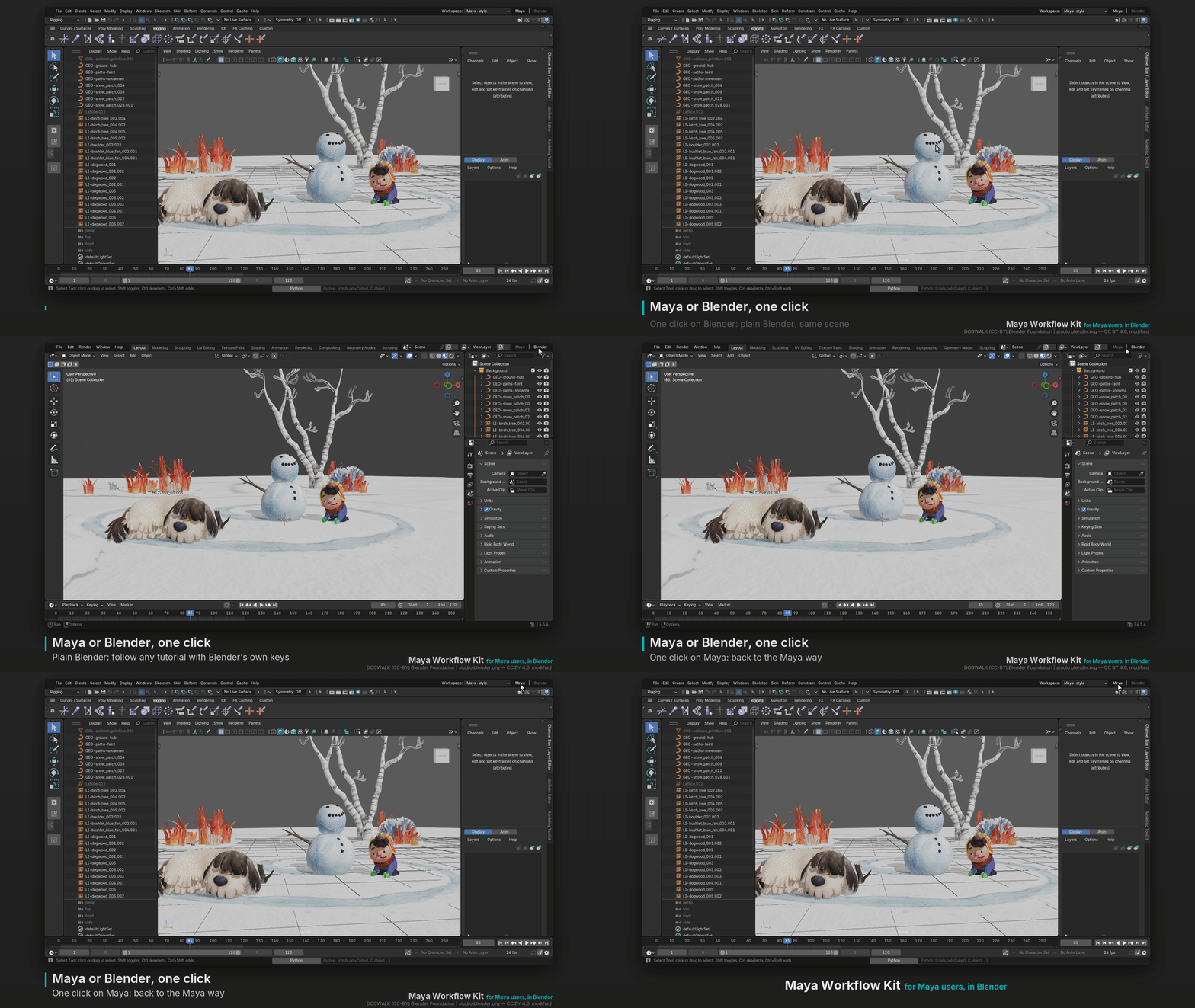
Click "Make Blender feel like Maya" and the kit adds its Maya keys, menus, panels and layout to the open file. The keys live as add-on keymap items, so your own keymap stays selected underneath. Click Blender on the switch and everything goes back, with the same scene still open. Disable or remove the extension and there's nothing left to undo.
That makes it a great learning tool. Almost every Blender tutorial uses Blender's default keys, so a Maya user can work in Maya mode and flip to Blender mode the moment a tutorial says press G or Tab. As the project's own site puts it, the tutorial ends and your Channel Box comes back.
The hotbox and marking menus
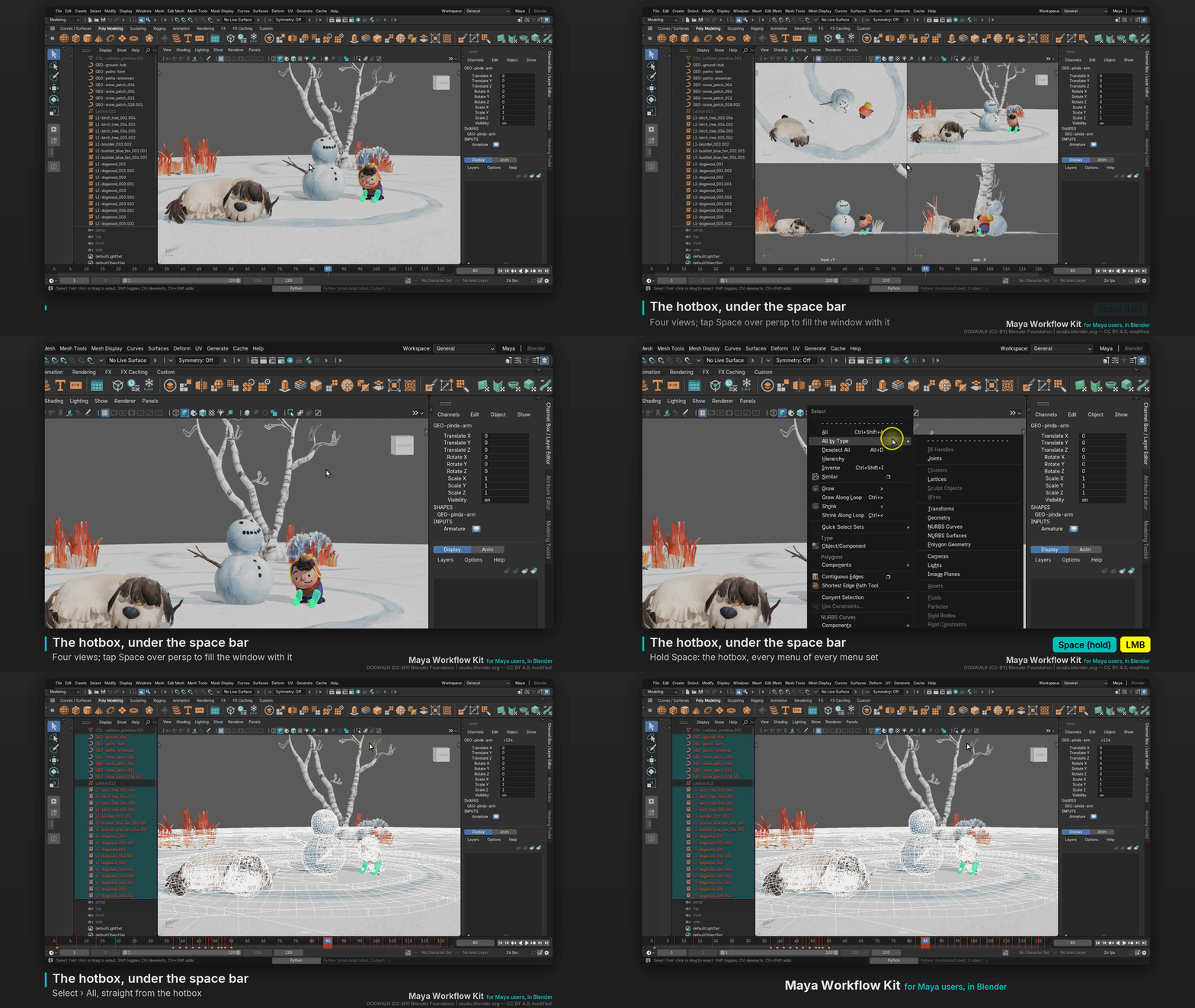
Hold Space and you get the hotbox, with every menu of the current menu set, your recent commands and the marking-menu zones around the cursor. Tap Space instead and it toggles between one view and four views, just like Maya.
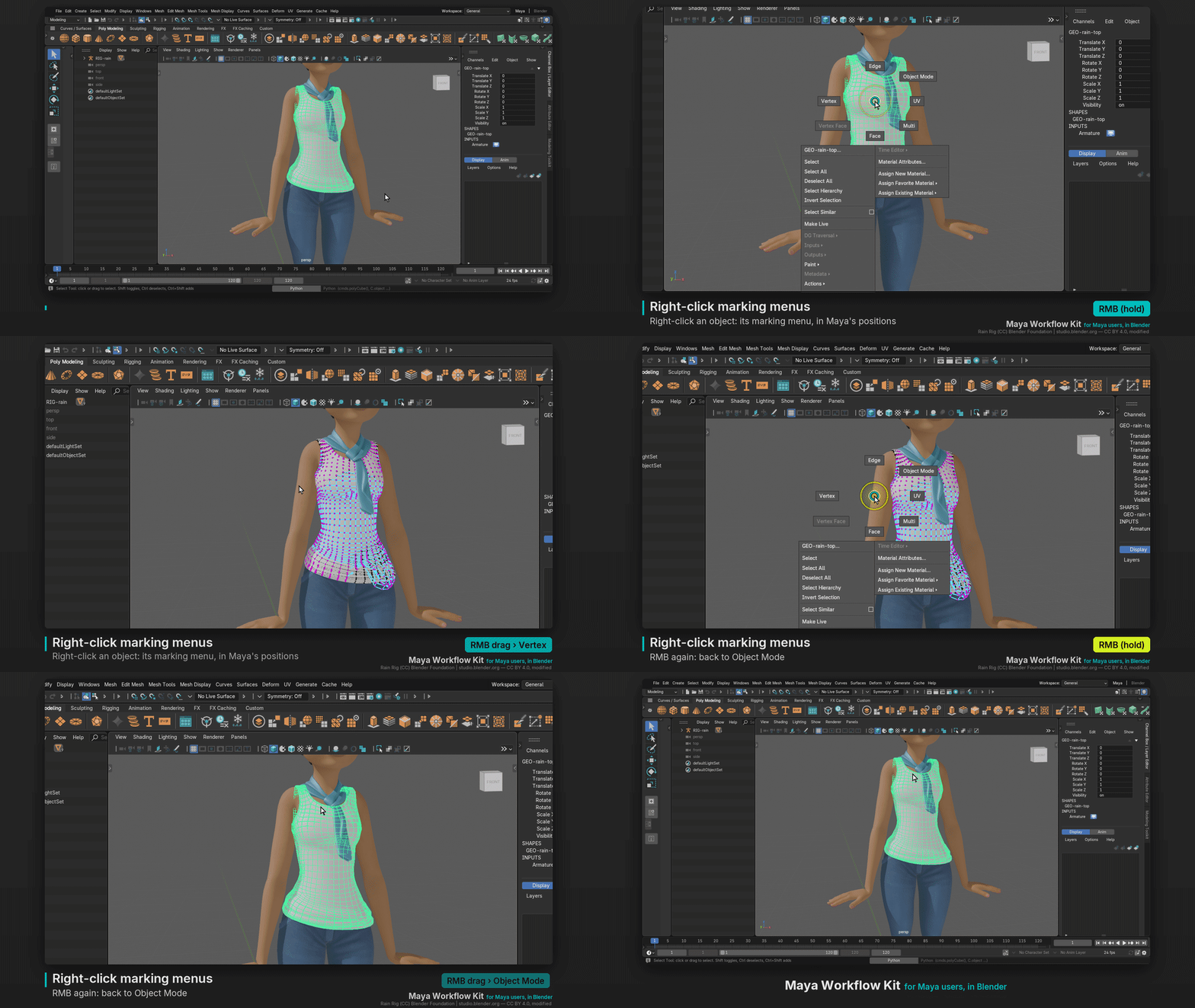
Right-click over an object or component and you get Maya's marking menus in Maya's radial positions, with gestures, submenus and option boxes. Shift and Ctrl right-click work too. Drag to Vertex and you're in component mode; right-click again for Object Mode.
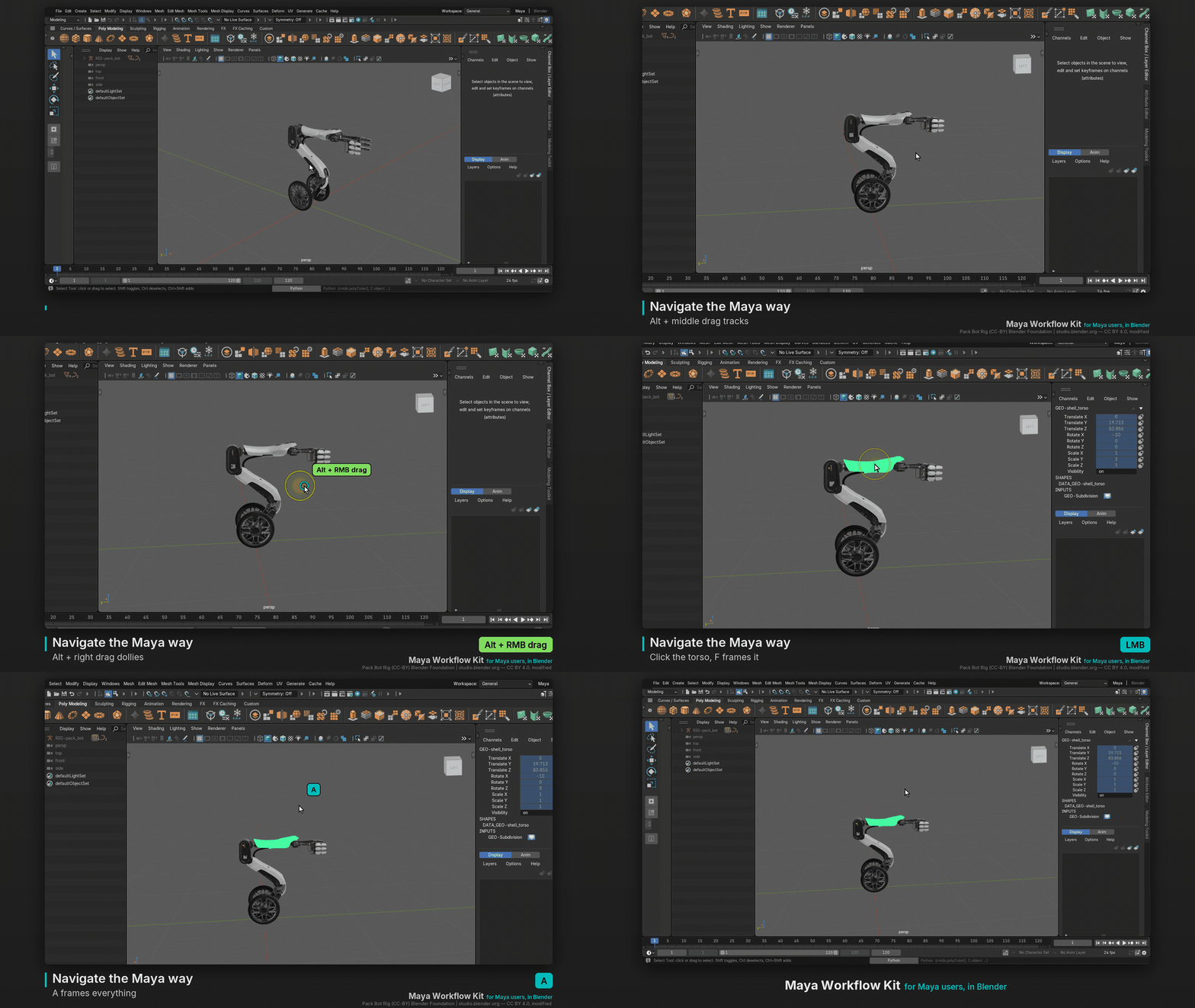
Across the top you get Maya's menu sets, Modeling, Rigging, Animation, FX and Rendering, on F2 to F6, with Maya's menu order and names. Option boxes open Maya-style option windows filled with Maya 2022's factory defaults. And the shelves are there too, Polygons, Rigging, Animation and the rest, with every button in its Maya slot. Navigation follows Maya as well: Alt plus left, middle and right drag to tumble, track and dolly, F and A to frame, and Q, W, E, R for your tools.
Channel Box, Maya concepts and modelling
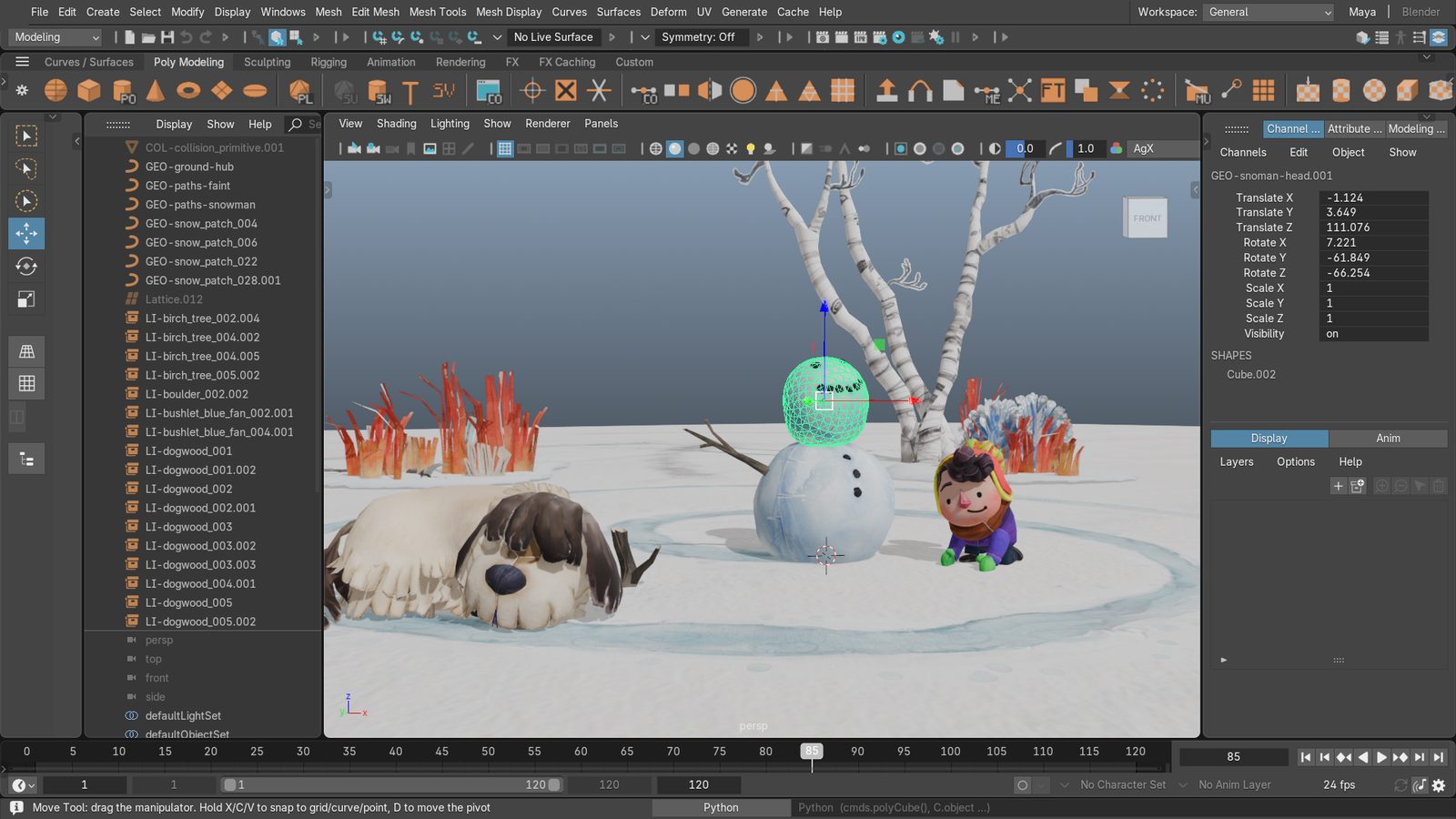
In Maya mode the layout itself changes: menu bar, Status Line, Shelf, Tool Box, Outliner, and the Channel Box with the Layer Editor beneath it. Panels dock beside the viewport and tear off into floating windows by their dotted handle.
The Channel Box does what Maya users expect. It shows translate, rotate, scale and visibility, plus SHAPES and INPUTS history, with keyed, locked and driven colours. You can type +=90 or *=2 into a field, select channels and middle-drag in the viewport as a virtual slider, and press S to key everything. Ctrl+A flips over to the Attribute Editor, which has Maya's node tabs and sections.
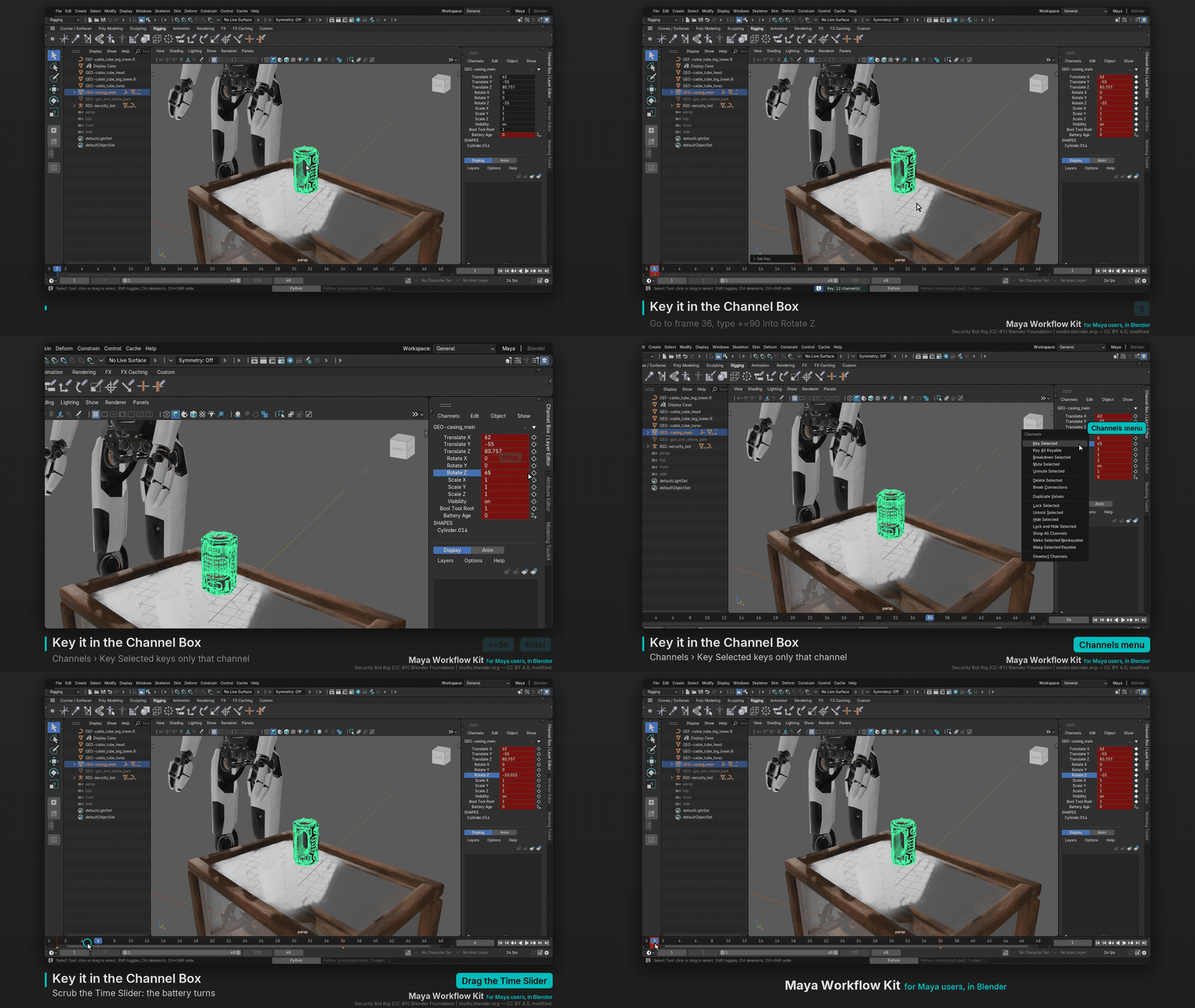
It doesn't stop at the interface. Maya's scene concepts come along too: Freeze Transformations, Reset Transformations, Center Pivot, Delete History, Maya-style parenting with P and Shift+P, Ctrl+G groups and Duplicate Special. New objects get Maya names like pCube1 and group1, Maya sizes in centimetres, and a default lambert1 material. Smooth Mesh Preview sits on 1, 2 and 3, with display modes on 4 to 7.
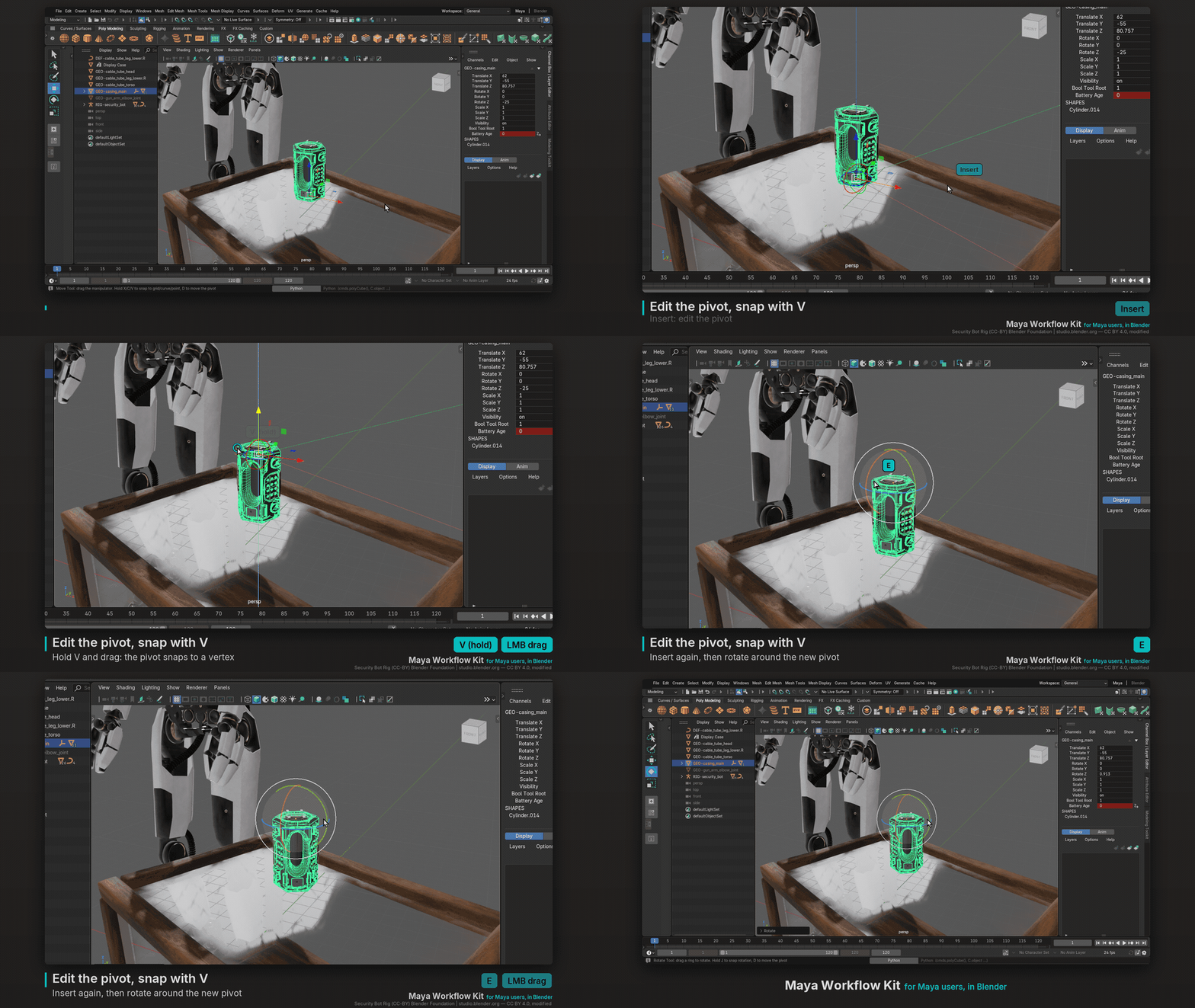
Hold keys work the Maya way as well. Hold X, C or V while dragging to snap to grid, edge or vertex. Press Insert or hold D to edit the pivot. B toggles soft select.
Animation, rigging, and a project moving fast
Animators get Maya's Time Slider with key ticks and a Range Slider, K-drag to scrub, comma and period for previous and next key, Auto Key, Playblast, and a Graph Editor with Maya's menus and tangent toolbar.
Riggers get the Joint Tool, IK Handles, Bind Skin, Paint Skin Weights, Set Driven Key and constraints, all from the Rigging shelf.
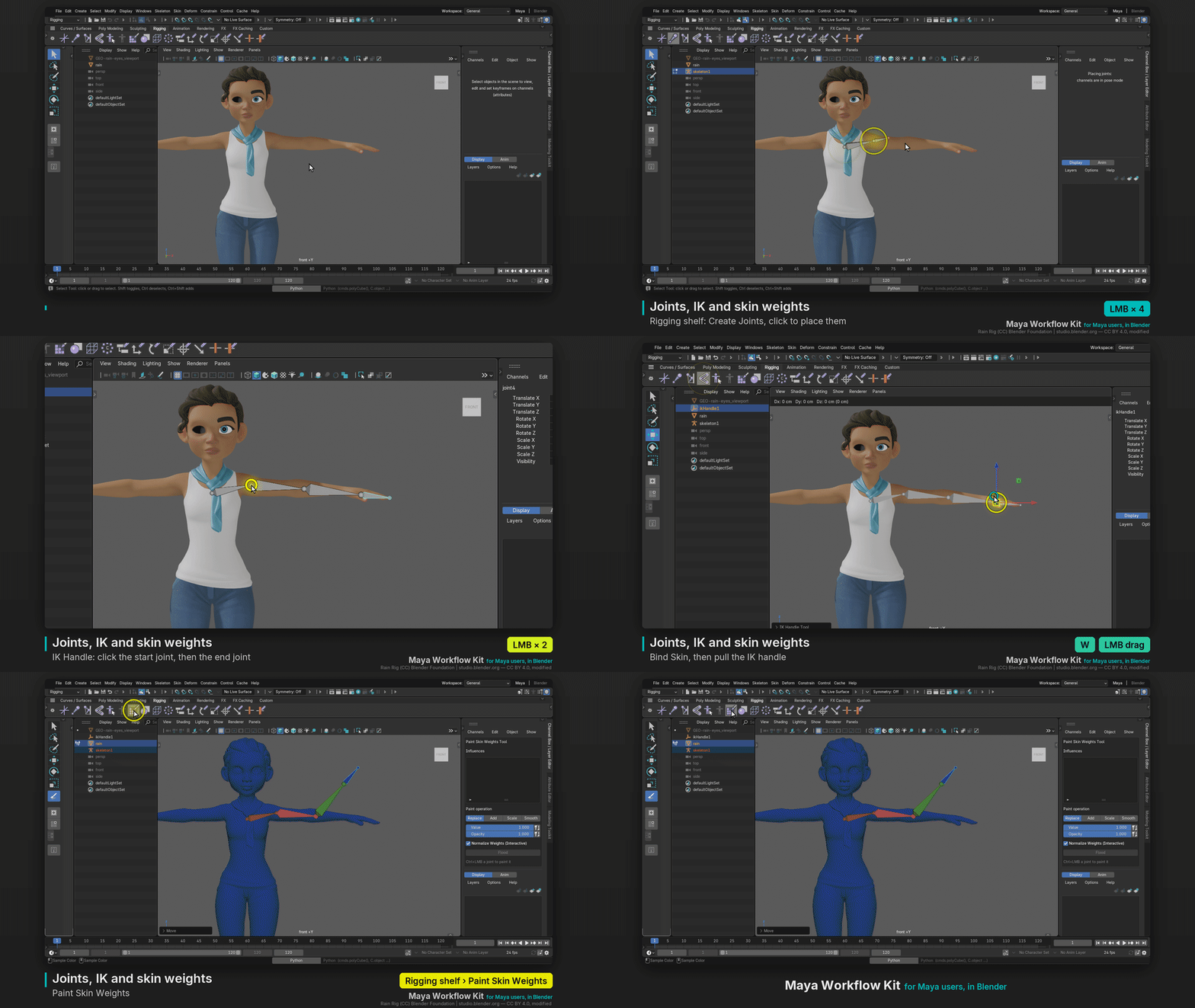
The pace of development is wild. Version 0.5.0, released October 27th, added rig controls from NURBS curves, weighted multi-target constraints, IK/FK switching, blend shapes with in-betweens, Pose Space Deformation, and a Hotkey Editor. It also moved the menus to match Maya 2026 and made renders match Maya's brightness. Several of those changes came straight from community bug reports and one contributed pull request, which tells you real Maya artists are already using it in actual work.
Where it stops
The developer is upfront that it's still rough in places, with some Maya tools missing and some not feeling quite right yet. Some limits come from Blender itself, since the kit is pure Python and doesn't fork Blender's C++ code. Blender stays Z-up and has one pivot per object, so Maya's separate rotate and scale pivots aren't possible. There's no MEL, only Python with a small maya.cmds look-alike. It can't open .ma or .mb files, so you'll still export FBX, OBJ, Alembic or USD from Maya. And there's no bundled theme, so for Maya's grey look you'll need to install a dark theme yourself.
One nice touch: any Maya menu item that Blender can't do is still shown, greyed out, with a short note explaining why and what to use instead.
It's also worth remembering this is a layer on top of Blender, not a replacement. Underneath, it's still Blender's modifiers, geometry nodes and renderers. At some point a Maya user still has to learn how Blender thinks. What the kit does is make that painful first month a lot easier, and that first month is exactly where most people give up.
Why this matters
The biggest thing keeping professionals from moving to Blender hasn't been features for a while now. It's switching cost. An artist with a decade in Maya is incredibly fast in Maya, and dropping them into Blender means weeks or months of being slow again. For a freelancer, slow means lost money. For a studio, it means retraining a whole team.
For years, the only answer was "just learn Blender's way." That's fair, but it asks people to give up the most valuable thing they have, their speed. This kit offers a different deal: keep your speed now, learn Blender gradually, and flip between the two whenever you want.
It's also a perfect example of Blender's real superpower. One developer, frustrated by his own muscle memory, rebuilt a whole Maya environment on top of Blender and gave it away. Nobody can do that the other way around with Maya. Blender is open enough for the community to build bridges into it, and every bridge brings more artists across.
Will studios switch tomorrow because of one addon? No. Pipelines, plugins and contracts don't move that fast. But for the individual Maya artist who's been curious about Blender and kept bouncing off it, this could be what finally makes it stick.
How to install it
The kit isn't on extensions.blender.org yet, so grab the latest maya-workflow-kit zip from the GitHub Releases page. In Blender 4.5 or later, go to Edit, Preferences, Get Extensions, open the drop-down at the top right and choose Install from Disk, then pick the zip. You can also just drag the zip onto the Blender window. Click "Make Blender feel like Maya" in the welcome dialog and you're in.
For the full Maya feel, the developer suggests a few optional settings you apply yourself: a dark grey theme, Turntable orbit with Zoom to Mouse Position off, Undo Steps at 256, Region Overlap off so side panels sit beside the viewport, and Only Insert Available for Maya-like auto key.
If you're a Maya user who's been Blender-curious, this is probably the easiest on-ramp that exists right now. And if you hit something that feels off, the developer is asking for GitHub issues, even one-liners. It's exactly the kind of project where a little feedback from real Maya artists goes a long way.
Sources
- Maya Workflow Kit on GitHub
- Maya Workflow Kit releases
- Maya Workflow Kit 0.5.0 release notes
- Maya Workflow Kit website
- GameFromScratch: Maya Workflow Toolkit for Blender